Getting Started with ScreenJournal - AI Employee Monitoring That Works
Learn how to implement AI-powered employee monitoring that provides actionable insights through screen recording analysis and weekly AI reports.
Getting Started with ScreenJournal
Employee monitoring shouldn't mean drowning in dashboards or playing surveillance games. ScreenJournal transforms how you understand your team's productivity - through AI-analyzed screen recording that delivers weekly insights, not daily micromanagement.
Why ScreenJournal?
Traditional monitoring tools create two problems:
- For managers: Dashboard overload with raw data you have to interpret yourself
- For employees: Feeling surveilled instead of supported
ScreenJournal solves both:
- AI Screen Recording - Continuous capture analyzed by AI, not random screenshots
- Weekly Reports - Intelligence delivered to your inbox, not dashboards to check
- Transparent Scoring - Employees see their own metrics and understand them
- Anomaly Detection - AI flags risks before they become problems
Key Features
1. AI-Analyzed Screen Recording
Unlike screenshot monitoring that captures moments, ScreenJournal records continuously and uses AI to understand the full picture:
- Multi-display support captures all work activity
- Gemini AI analyzes patterns and behaviors
- Context-aware understanding of different roles
- Automatic processing with configurable retention
Why this matters: Employees can't game random screenshots by staging "productive" screens. The AI sees the complete work pattern.
2. Effort Score (0-100)
Every team member receives a transparent Effort Score based on:
| Factor | What It Measures |
|---|---|
| Idle Time | Reasonable breaks vs. excessive inactivity |
| Focus Ratio | Time in work apps vs. distractions |
| Activity Intensity | Keyboard/mouse engagement levels |
| Schedule Adherence | Presence during expected work hours |
Role Normalization: Our AI understands that a call center agent handling back-to-back calls looks different from an account manager doing strategic outreach, which looks different from a developer coding. Scores are calibrated per role so everyone is evaluated fairly.
3. Weekly AI Reports
Every Monday morning, you receive a comprehensive AI-generated report:
- Team Rankings - Top performers with explanations of what makes them successful
- Risk Alerts - Early warning signs explained with context and recommended actions
- Anomalies Detected - Unusual patterns worth investigating (overtime, idle abuse, burnout signals)
- Actionable Suggestions - Specific recommendations to improve team productivity
No more dashboard diving. The AI does the analysis; you make the decisions.
4. Anomaly Detection
ScreenJournal's AI continuously monitors for patterns that indicate problems:
Productivity Risks:
- Idle abuse (frequent extended idle periods)
- Context drift (excessive time in non-work applications)
- Phantom overtime (logged hours without screen activity)
Wellbeing Alerts:
- Burnout signals (consistent overwork, late nights, weekend patterns)
- Declining productivity trends
- Schedule irregularities
When anomalies are detected, they're included in your weekly report with clear explanations and recommended next steps.
5. Voice Analysis
For teams where work happens through conversations - call centers, sales teams, support desks - ScreenJournal captures and analyzes voice alongside screen activity.
Two audio streams, one intelligence layer:
- Microphone audio: What your employee says - tone, professionalism, script adherence
- Screen audio: What's playing on their machine - customer voice on a call, training videos, hold music
The AI separates these streams to understand the full picture of call-based work:
| Signal | What It Reveals |
|---|---|
| Call sentiment | Customer frustration levels, successful de-escalation |
| Talk-to-listen ratio | Whether agents are dominating conversations or actively listening |
| Dead air | Extended silence that may indicate confusion or disengagement |
| Script adherence | Compliance with required disclosures or sales scripts |
Like screen recordings, voice data follows the same privacy-first architecture: AI extracts insights, then the raw audio is purged. Managers see sentiment scores and quality signals in their weekly report, not raw call recordings.
Setting Up Your Team
Step 1: Install the Desktop App
ScreenJournal runs as a lightweight desktop application:
- Supported Platforms: Windows, macOS, Linux
- System Impact: Minimal CPU/memory usage
- Recording: Configurable quality and storage settings
The app runs quietly in the background, starting automatically when the computer boots.
Step 2: Configure Your Preferences
Customize monitoring for your organization:
- Work Hours: Define expected schedules per team or role
- Recording Settings: Adjust quality, framerate, and retention
- Privacy Options: Configure what's analyzed and stored
- Report Delivery: Choose weekly report recipients
Step 3: Communicate with Your Team
Transparency is essential for successful monitoring:
Tell your team:
- What ScreenJournal records (screen activity)
- What the AI analyzes (patterns, not personal content)
- How Effort Scores work
- That they can see their own metrics
Emphasize the benefits:
- Fair, objective evaluation
- Early burnout detection protects them
- Transparent methodology they can understand
- Focus on improvement, not punishment
Step 4: Establish Baselines
The first 2-3 weeks are a learning period:
- AI establishes normal patterns for your team
- Effort Score calibration happens automatically
- Initial anomaly thresholds are set
- First weekly reports provide early insights
After this period, the AI delivers increasingly accurate and actionable intelligence.
Best Practices
Focus on Patterns, Not Policing
Use monitoring data to identify:
- Team-wide productivity trends
- Process bottlenecks affecting multiple people
- Training opportunities
- Workload balance issues
Avoid using data to micromanage or punish individual moments of inactivity.
Act on Weekly Reports
The power of ScreenJournal is in the AI insights. When you receive your weekly report:
- Review rankings - Understand who's excelling and why
- Address risks - Follow up on flagged issues promptly
- Investigate anomalies - Context matters; talk to people
- Implement suggestions - The AI recommendations are based on real patterns
Combine AI with Human Judgment
Data informs decisions but doesn't make them. Always:
- Talk to team members about concerning patterns
- Consider context the data can't capture
- Use insights to support, not just evaluate
- Celebrate successes identified by the AI
Common Questions
Q: Can employees see their own data? A: Yes. Full transparency. Every team member can view their Effort Score, activity patterns, and understand how they're being evaluated.
Q: Is screen recording stored forever? A: No. You configure retention periods (default: 3 days). The AI extracts insights, then recordings are automatically purged. You keep the intelligence without storing everything forever.
Q: What about sensitive information on screen? A: The AI analyzes work patterns, not content. We don't OCR documents, read messages, or extract text. The analysis focuses on application usage, activity levels, and time patterns.
Q: How does role normalization work? A: Different roles have different "productive" screen patterns. A designer reviewing visual work looks different from a developer coding. Our AI learns these patterns and scores everyone fairly against role-appropriate baselines.
Q: What if someone works unusual hours? A: Configure expected schedules per person or team. The AI evaluates adherence to their schedule, not a one-size-fits-all standard.
What Sets ScreenJournal Apart
| Traditional Tools | ScreenJournal |
|---|---|
| Random screenshots | Continuous AI-analyzed recording |
| Dashboards to interpret | Weekly reports with insights |
| Raw data dumps | Actionable recommendations |
| One metric for everyone | Role-normalized scoring |
| Surveillance feeling | Transparent methodology |
Next Steps
Ready to transform how you understand your team's productivity?
- Start Your 2 months Free Trial - See ScreenJournal in action with your specific use case
- Test With a Small Team - Pilot with a few team members first
- Review Documentation - Detailed guides for every feature
Stop guessing. Start knowing.
Let AI turn screen data into clear insights. Start your 2 months free trial
Related Posts
AI-Powered Time Tracking - How Screen Recording Changes Everything
Discover how AI-analyzed screen recording transforms employee monitoring from surveillance into actionable intelligence that drives real productivity improvements.
Beyond Screen Recording: Why Voice Analysis is the Missing Piece in Employee Monitoring
Most employee monitoring tools only watch screens. For call centers, sales teams, and support desks, the real work happens through voice. Learn how AI voice analysis closes the visibility gap.
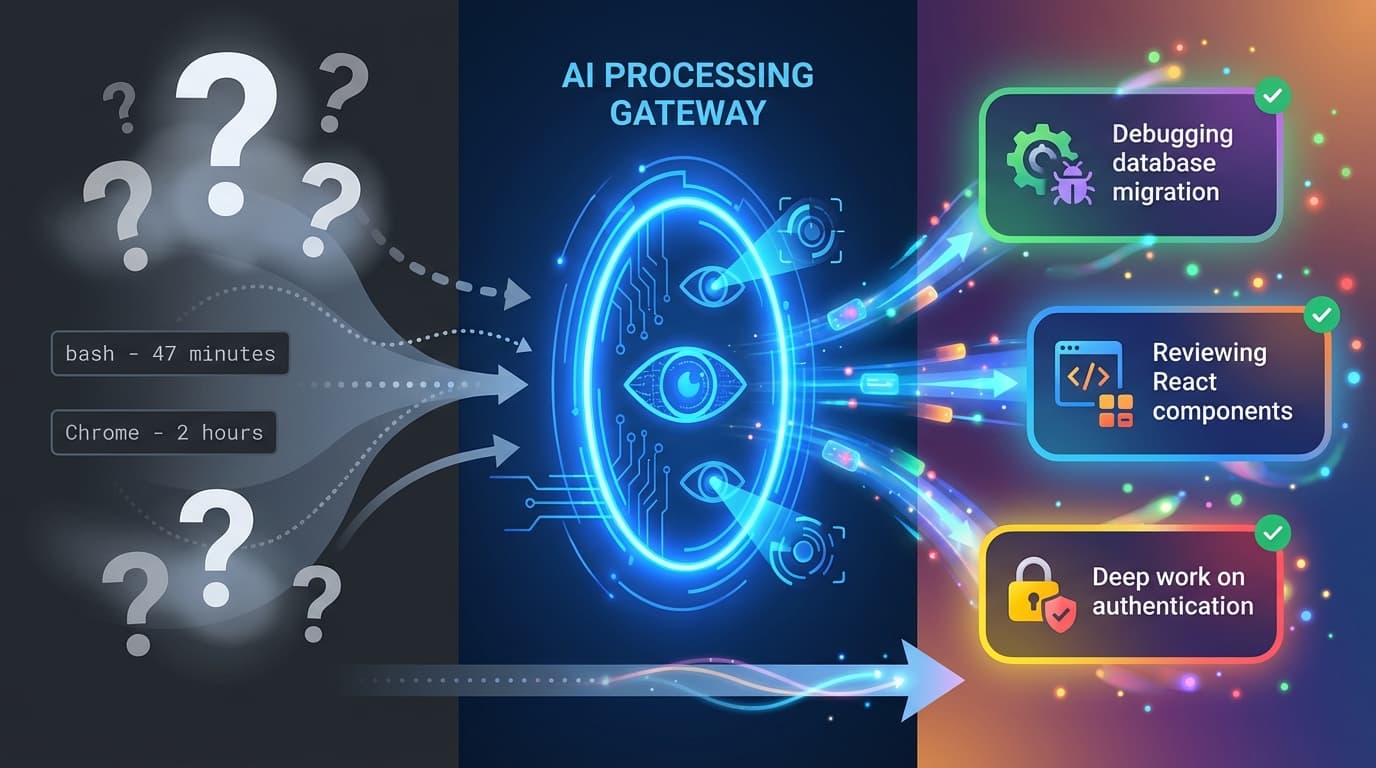
ScreenJournal vs. ActivityWatch: From Logger to Analyst
ActivityWatch logs window titles locally. ScreenJournal adds AI screen analysis, voice monitoring, and team analytics for business workforce intelligence. Compare privacy models, features, and use cases.